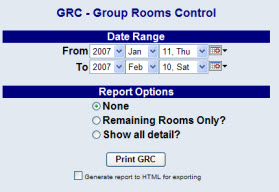
The Group Rooms Control or GRC report shows all of the group blocks due to come in during the specified date range, along with the number of rooms blocked per night for each group.
Click the Reports icon from the Action Bar, to open the Reports Area.
Then select Group Rooms Control (GRC) from the Room Reports section of the Reports Area.
Alternately, you can access the GRC Report from the Sales and Catering area of Skyware.
Select the Date Range for the report. This range identifies the dates during which group blocks are due to come in.
Select one of the available Report Options. Your choices include:
When finished, click Print GRC.
Once generated, the report lists each Booking/Meeting Name, the Manager that booked it, total number of rooms in the block (regardless of whether all of the dates of the group block appear on the report), average room rate, the total room revenue, and the number of rooms blocked night by night. The report totals the columns at the bottom.
By default, the report is generated in PDF form and opens in a separate browser window. From there you can select to save or print the report, among other options. You can, instead, check the Generate report to HTML for exporting checkbox to generate the report in HTML instead of PDF.