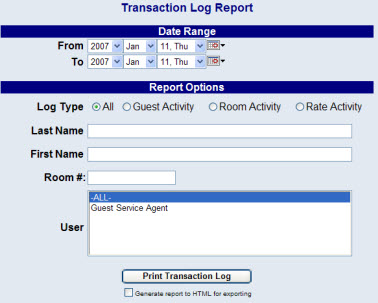
The Transaction Log report show all of the transactions that occurred within the system for the specified date range and options.
Click the Reports icon from the Action Bar, to open the Reports Area.
Then select Transaction Report from the Other Reports section of the Reports Area.
Select a Date Range for the report.
Select the appropriate Report Options for the report. The report can be filtered by guest information activity, room activity, room rate activity, and for a specific guest's last or first name.
It can be printed to show the activity for specific system users or all users. Hold down the CTRL key while making selections from the list to select multiple items at once.
Once generated, the report groups the activity by the 3 selections (guest, room and rate) by date and shows the guest name, type of activity (add, modify, delete, etc) the time, user, status of the record (temp, resv, fol, etc), and additional information based on the log type (Guest Activity, Room Activity, Rate Activity) being displayed.
By default, the report is generated in PDF form and opens in a separate browser window. From there you can select to save or print the report, among other options. You can, instead, check the Generate report to HTML for exporting checkbox to generate the report in HTML instead of PDF.